Imports overview
Imports are used to upload files into lead2car and create or update records based on the uploaded data.
To view existing imports, open the Imports section from the navigation menu.
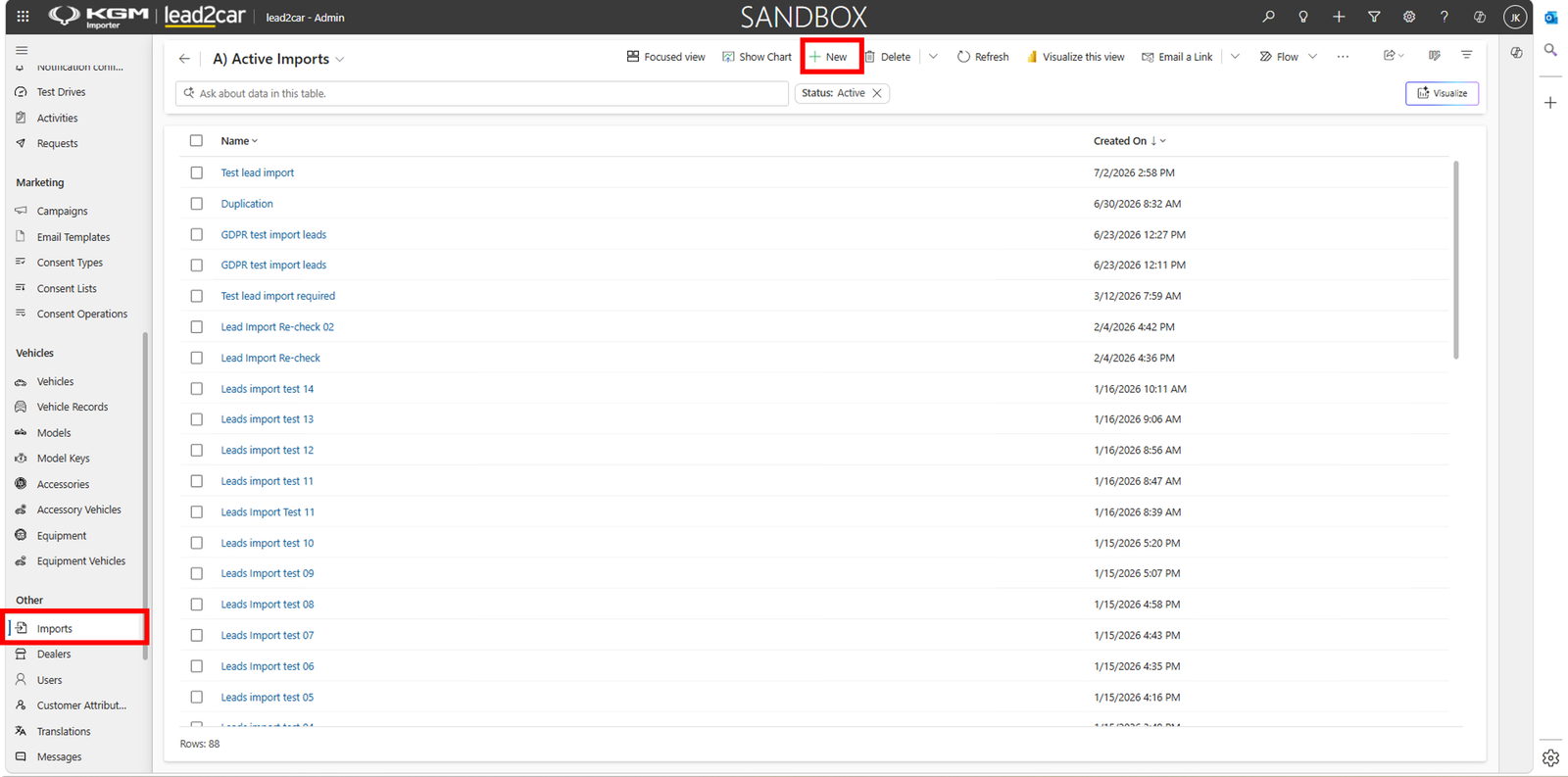
The import list displays all existing imports, including the import name and creation date.
To create a new import, click New in the command bar.
Create new import
After clicking New, a new import form is opened. First, enter the import name.
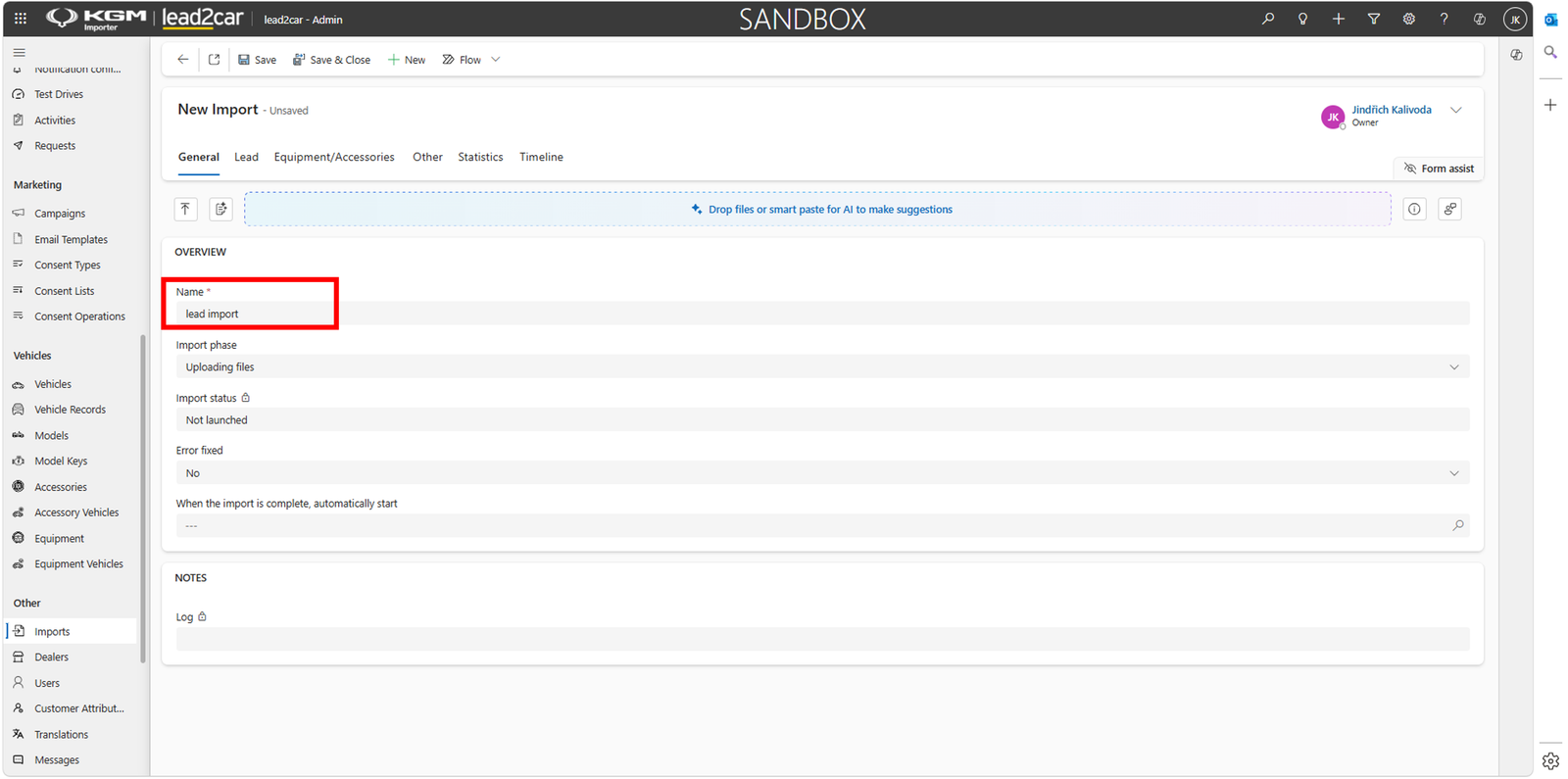
The name should clearly describe the purpose of the import, for example lead import or accessories import.
After entering the name, save the import record.
Lead import
To import leads, open the Lead tab and upload the Excel file containing lead data.
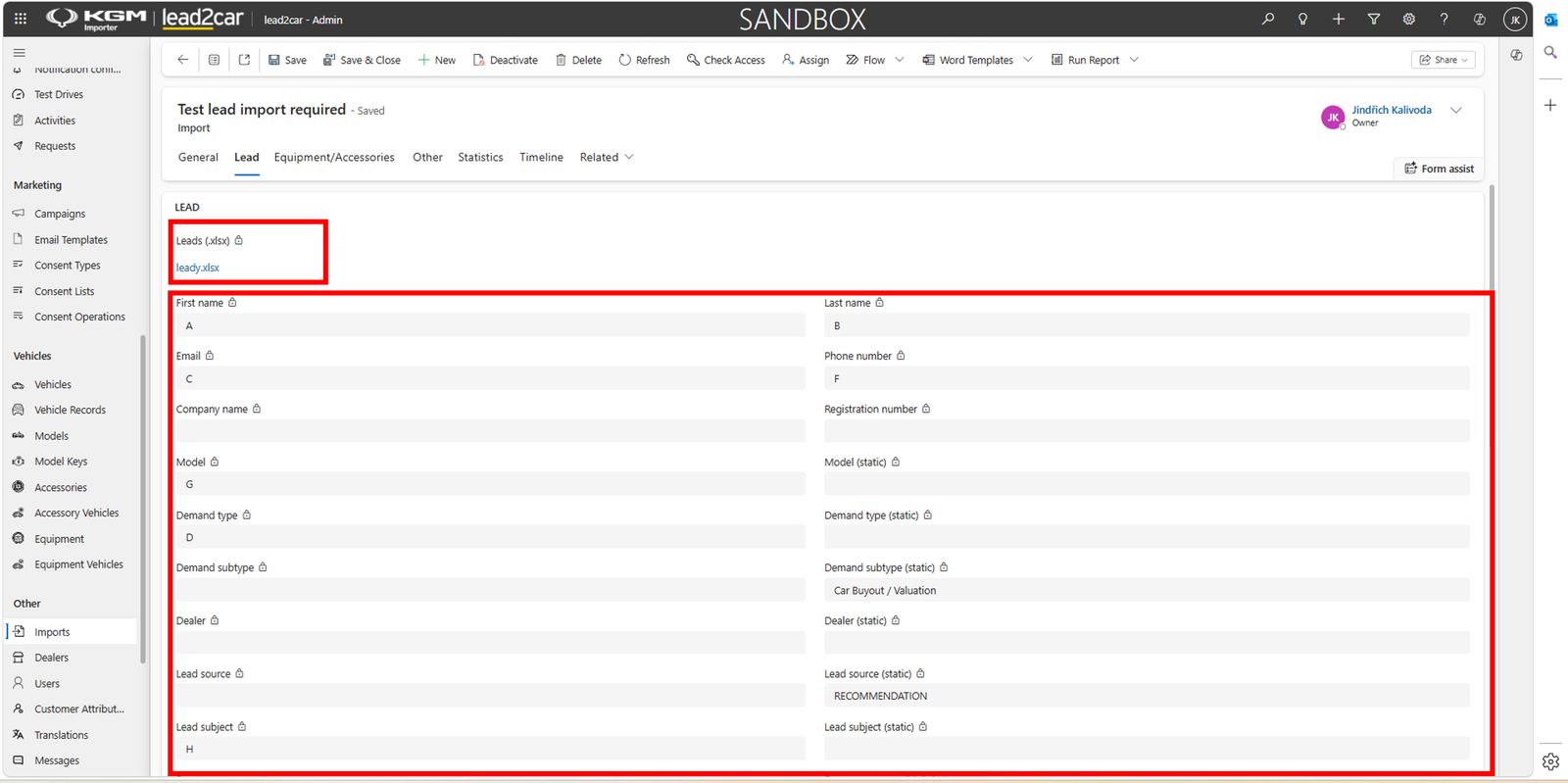
After uploading the file, define which Excel columns contain which lead information. The system needs to know where individual values are located in the uploaded file.
Column mapping
- First name – column containing the customer first name
- Last name – column containing the customer last name
- Email – column containing the customer email address
- Phone number – column containing the customer phone number
- Company name – column containing the company name, if available
- Registration number – column containing the registration number, if available
- Model – column containing the requested model
- Demand type – column containing demand type information
- Demand subtype – column containing demand subtype information
- Dealer – column containing dealer information, if available
- Lead source – column containing the lead source
- Lead subject – column containing the lead subject
After all required fields are mapped, save the import.
Equipment & accessories import
Equipment and accessories can be imported from a separate Excel file. Open the Equipment/Accessories tab.
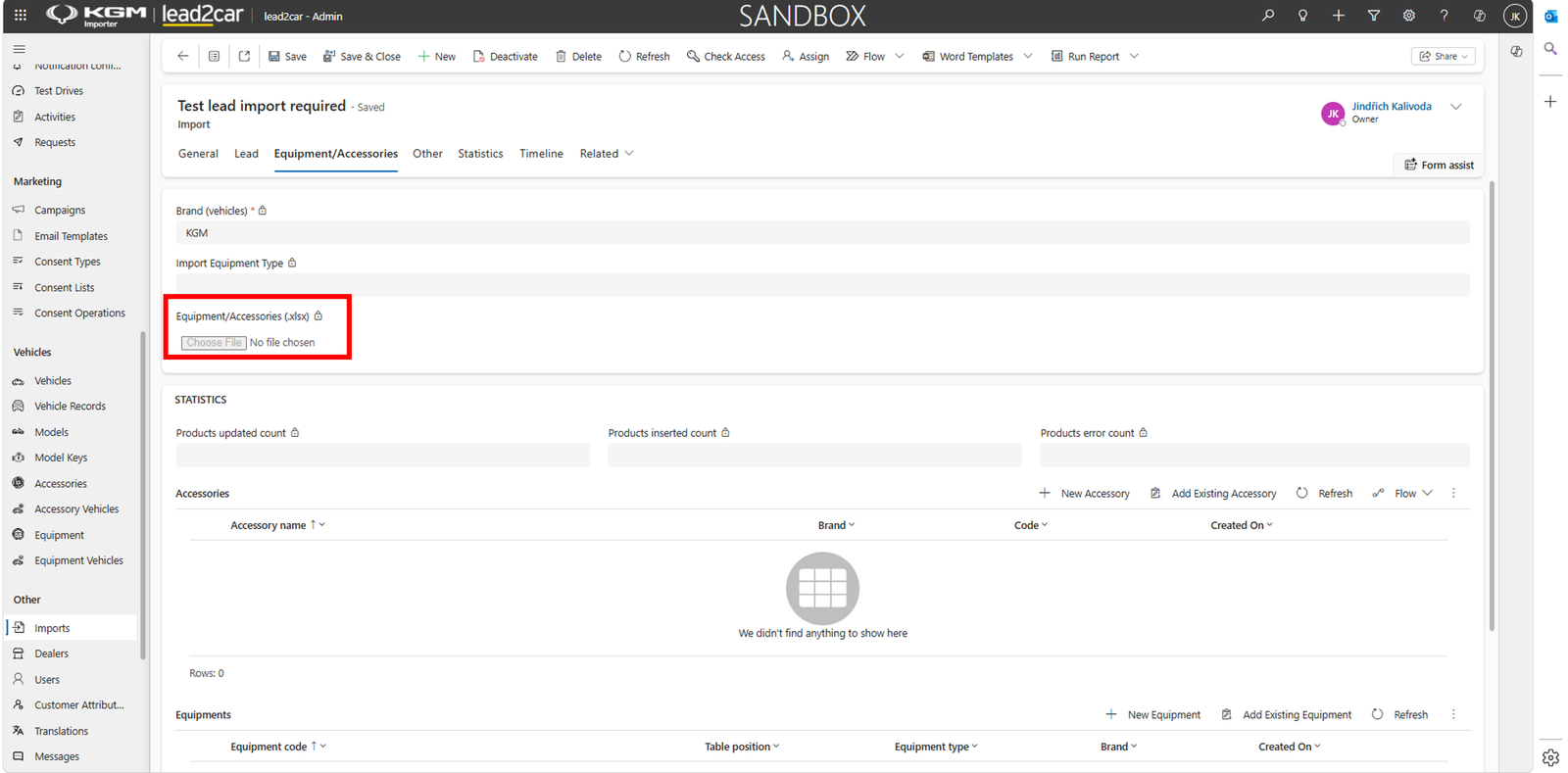
Select or verify the brand for which the equipment or accessories should be imported, then upload the Excel file in the Equipment/Accessories (.xlsx) field.
The uploaded file is used to create or update accessories and equipment records in lead2car.
Required file structure
Before uploading the file, make sure that the Excel file follows the required structure.

The file should contain the following columns:
- code
- name
- description
- catalogCode
- categoryCode
- categoryName
- displayOrder
- imageUrl
- accessoryCategory
- price
- priceNoVat